Laptop with fingerprint reader Refurbished, sign in with your finger
With a fingerprint reader you unlock your laptop by briefly resting your finger on the sensor, without typing a password.

Lenovo ThinkPad T14 Gen 4Intel Core™ i5-1335U
Features

Lenovo ThinkPad X1 Yoga Gen 5Intel® Core™ i5-10310U
Features

Lenovo ThinkPad X1 Carbon Gen 6Intel® Core™ i5-8350U
Features
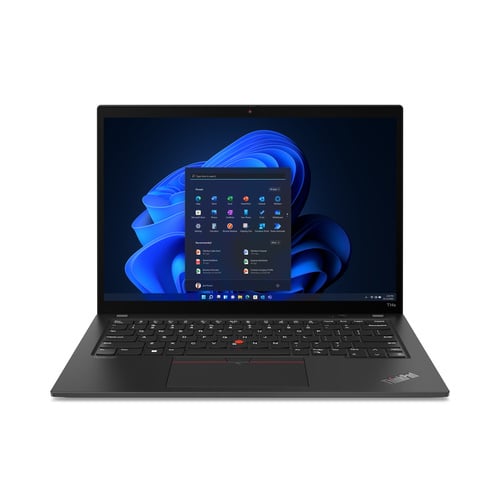
Lenovo ThinkPad T14s Gen 3Intel® Core™ i5-1240P
Features


Lenovo ThinkPad X1 Yoga Gen 6Intel® Core™ i7-1185G7
Features


Lenovo ThinkPad X13 Yoga Gen 4Intel® Core™ i5-1335U
Features

Lenovo ThinkPad X1 Yoga Gen 7Intel® Core™ i5-1240P
Features
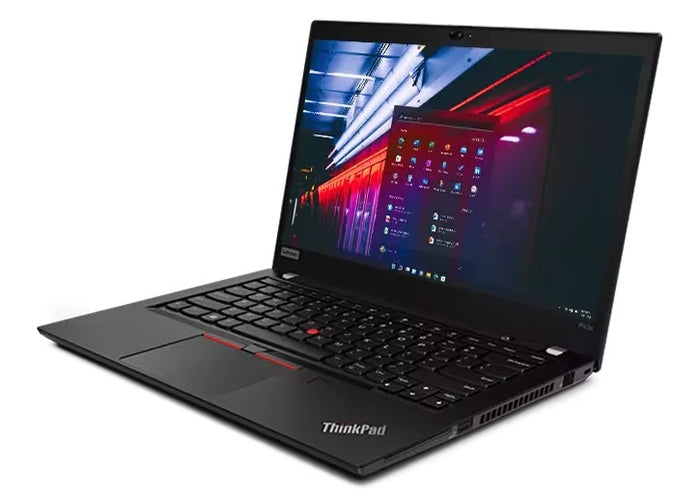
Lenovo ThinkPad P43sIntel® Core™ i7-8565U
Features
Sign in with your finger, no password.
Where the sensor sits, when it is worth it and which ThinkPads have one.
On ThinkPads the sensor is in the power button or to the right of the keyboard, as a small square with a rim around it. If it is in the power button, you switch on and sign in with one movement.
Your fingerprint itself does not go to Microsoft and it does not come to us. Windows Hello keeps an encrypted pattern on the device; the sensor compares against it and only returns a yes or a no.
If you open and close your laptop all day, or work in places where someone can look over your shoulder while you type your password. Signing in then takes a moment, and you can choose a longer password because you hardly ever type it.
With wet, greasy or very dry fingers this kind of sensor does not always read well. Your PIN or password keeps working, so it cannot lock you out.
Of the eight features you can choose from here, this one appears most often in our range. This collection currently holds Lenovo ThinkPads only: many X1 Carbons, plus the X13, the X390 and a large part of the T series.
You cannot tell from the model alone, because it was an option per device. For the laptops above, our records show the sensor is fitted.
A fingerprint scanner works in the dark and also when you are not sitting straight in front of the screen. You put your finger down and you are in, without typing a password.
Face recognition works hands-free, which is pleasant if you often step away. Many business models have both; what a device has is stated in the specifications.
Questions? Answers.
It is a laptop with a small sensor, often in the power button or beside the keyboard, that reads your fingerprint. Instead of typing a password you rest your finger on it and the device unlocks. The sensor works together with Windows Hello, the sign-in method built into Windows.
You can set it up when Windows first starts, and later through Settings, Accounts, Sign-in options. You draw your finger over the sensor a few times so Windows gets to know it. You can add several fingers, for example from both hands.
Check for yourself in Settings, Accounts, Sign-in options. Under Fingerprint recognition it says whether any prints are stored; you can also delete them there and add your own.
With us every laptop gets a clean installation of Windows, and the previous user's accounts disappear with it, so their prints do too. The pattern is encrypted and stays on the device, nowhere else.
Your print is not stored as an image. Windows turns it into an encrypted code that stays in a protected part of the device and does not leave it. Your password or PIN remains alongside it, so you can always get in.
No. The comparison happens on the laptop itself, in a separate protected area. So you can sign in without a network, on a plane or in a place without wifi.
Your fingerprint also does not go to Microsoft or to us. What is stored is an encrypted pattern from which your print cannot be reconstructed.
Not always. A wet, greasy or very dry finger is sometimes not recognised. Wipe your finger and try again, or use your PIN. Registering several fingers helps, because then you always have an alternative.
On many business models it does. In the BIOS you can set your finger to be accepted before Windows begins, instead of typing a start-up password. You switch that on in the security settings of the BIOS.
Whether it is possible varies per device and per BIOS version. If it does not work, the sensor still works as soon as Windows has started.
Not on the first screen. BitLocker asks for your PIN or recovery key before Windows loads, and at that point the sensor is not active yet. After that you do sign in with your finger.
So keep that recovery key safe, even if you otherwise only use your finger. It is 48 digits long and can be found in your Microsoft account under your devices, or with your IT department if the laptop comes from work.
Often yes. Many password managers and business programs can use the sensor instead of a password, through the same Windows Hello setting. Whether it works depends on the website or the program itself.
Face recognition works with an infrared camera and unlocks as soon as you look at the screen. A fingerprint reader asks for one touch. With a hat or a scarf on, the finger is often handier, and in the dark both work. Some laptops have both.
Have a look at laptops with face recognition too.
No. On business models it often does, but it remains a choice the first owner made at the time. That is why the features of each device state whether it has one, and you can filter on it here.
If you would like to see what else there is to choose from, have a look at choosing a laptop by feature.
Remove your fingerprint in Settings, Accounts, Sign-in options and add it again. That solves most cases, because it is more often the stored pattern than the sensor.
If that does not help, check in Device Manager under Biometric devices whether the sensor is still listed. Disable it and enable it again, or remove it and restart; Windows will put it back itself. Your PIN keeps working, so it cannot lock you out.
Yes. In Settings, Accounts, Sign-in options you remove your fingerprint and then only use your PIN or password. If you want the sensor off completely, you can do that in the BIOS or in Device Manager.
That last option is mainly for organisations that do not allow biometrics. For use at home, removing your print is enough.
Every laptop is checked on more than fifty points before it is sold. You then set the sensor up yourself with your own finger: thanks to the clean installation of Windows the previous user's data is gone.