Laptop with face recognition Refurbished, sign in with your face
A laptop with face recognition has an infrared camera that recognises your face, so you are in as soon as you open it and look at the screen.
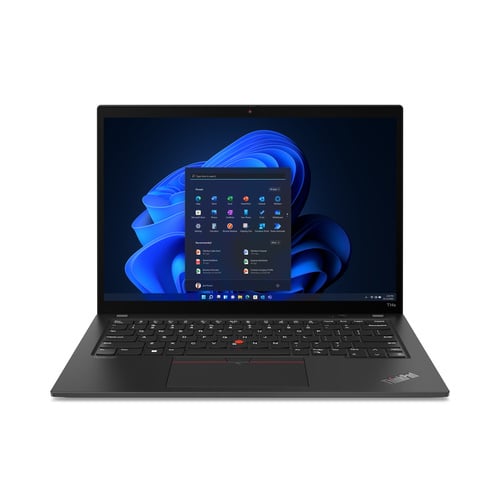
Lenovo ThinkPad T14s Gen 3Intel® Core™ i5-1240P
Features


Lenovo ThinkPad X1 Yoga Gen 6Intel® Core™ i7-1185G7
Features


Lenovo ThinkPad X1 Yoga Gen 7Intel® Core™ i5-1240P
Features
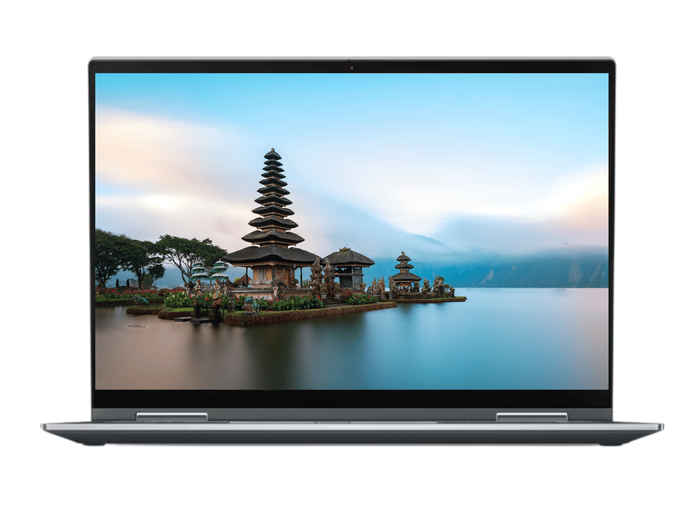
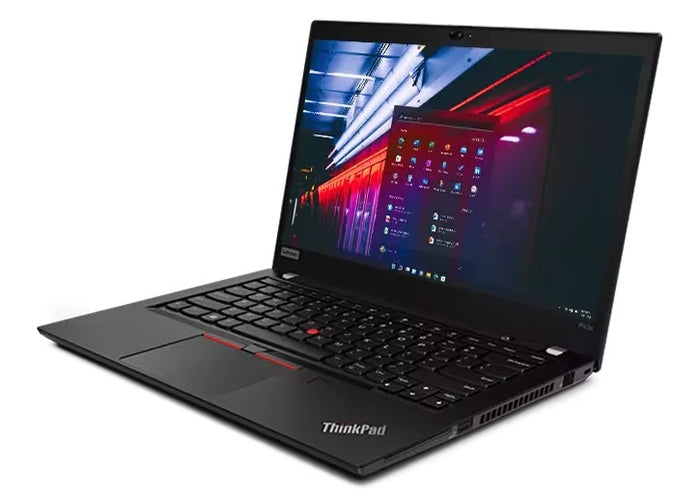
Lenovo ThinkPad P43sIntel® Core™ i7-8565U
Features

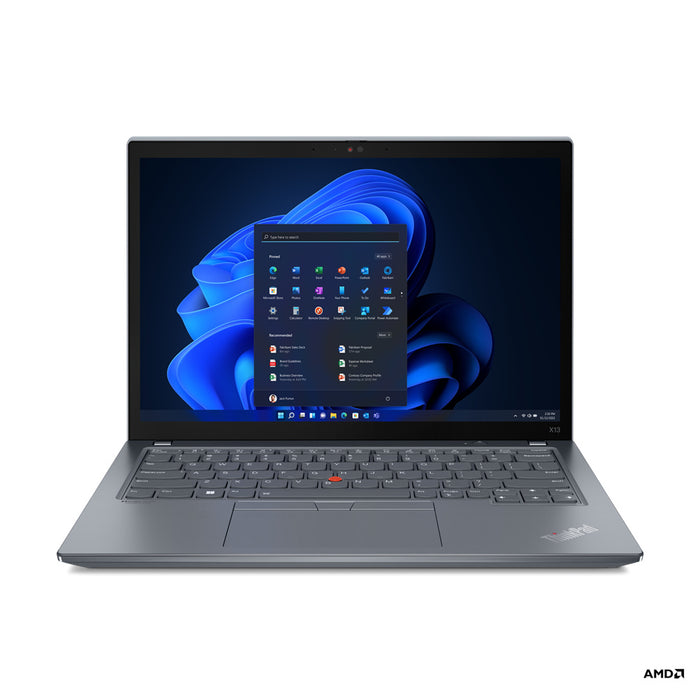
Lenovo ThinkPad X13 Gen 3Intel Core i5-1245U
Features

Lenovo ThinkPad X1 Yoga Gen 6Intel® Core™ i7-1185G7
Features
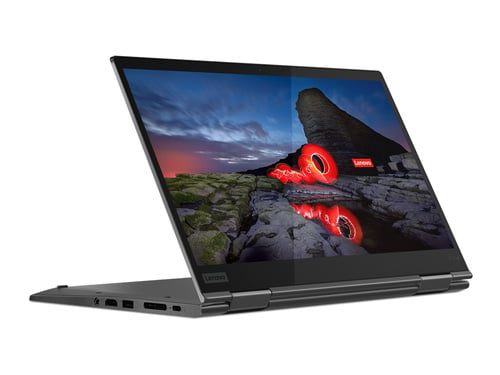
Lenovo ThinkPad X1 Yoga Gen 5Intel® Core™ i7-10610U
Features
Open the lid, look, and you are in.
How to tell whether a laptop can do it, when it is worth it and which ThinkPads have it.
By the camera, not by the model. Face recognition needs an infrared camera; in the specifications that is called an IR camera or a Hello camera. Next to the ordinary lens there is then a second, darker lens.
An ordinary webcam is not enough for it. That only sees a flat picture, and Windows Hello cannot work with that.
If you often step away for a moment and come back. You open the lid, look at the screen and you are in, without touching anything. In the dark too, because the infrared camera does not need a light.
Mind one thing: if you close the shutter over the camera or tape it over, it cannot see you and you will have to type your PIN after all. Anyone who keeps the camera closed is better off with a fingerprint reader.
This collection currently holds Lenovo ThinkPads only, with the X1 Carbon and the X1 Yoga as the largest group, plus the X13 and the T series.
This was an option per device as well: the same model exists with and without an infrared camera. For the laptops above, our records show the camera is fitted.
Face recognition works hands-free: you open the lid and you are in. That is pleasant if you often step away and come back. With wet or cold fingers it keeps working.
A fingerprint scanner works better in the dark and when you are not sitting straight in front of the screen. Many business models have both; what a device has is stated in the specifications.
Questions? Answers.
Face recognition on a laptop runs through a dedicated infrared camera that makes a three-dimensional picture of your face. The system recognises depth information and individual features, which makes it considerably safer than an ordinary camera.
Go to Settings, Accounts, Sign-in options and choose Facial recognition. Windows asks you to look straight into the camera and is finished after a few seconds. You do need a PIN first; that stays your fallback.
If Facial recognition is not listed, the device does not have an infrared camera. Then only a fingerprint reader or your PIN will work.
Yes. Infrared-based face recognition works independently of the surrounding light, in the dark or against the light as well. The infrared camera uses its own invisible light spectrum to scan the face.
On modern business laptops, signing in with face recognition is practically instant. As soon as you wake the screen, the camera scans your face and the system is unlocked in less than a second.
No. Windows Hello makes an encrypted pattern of the shape of your face and keeps it on the laptop itself, in a separate protected area. No photo can be reconstructed from that pattern.
It also does not go to Microsoft or to us, and no internet is needed for it. Signing in works just as well without a network.
On laptops with an infrared camera that is practically impossible. The infrared sensor measures depth and warmth, so a flat photo or a print is not valid input. That makes it a dependable method for signing in day to day.
Yes, face recognition through an infrared camera meets high security requirements. Business manufacturers use it as a full sign-in method. For particularly strict requirements, face recognition can be combined with a PIN or a smart card.
If your organisation works with a pass, have a look at laptops with a smart card reader.
Most laptops with face recognition will recognise you with glasses or a hat on. A mask that covers most of the face can make recognition harder. A fingerprint reader is then a handy alternative.
No. Many business laptops have a shutter that physically covers the camera, and then the infrared camera cannot see anything either. Windows falls back on your PIN.
Slide it open and it works again. Anyone who keeps the shutter closed by default gets more out of a fingerprint reader in practice.
One per account. If you share the laptop, everyone creates their own Windows account and sets up their own face there. At the sign-in screen the laptop then picks the account it recognises.
Two faces on the same account is not possible. That is by design: the account belongs to one person.
Both are forms of biometric sign-in. Face recognition works without you touching the device, which is quicker and more hygienic. A fingerprint reader asks for contact, but works just as well. Some laptops offer both.
Have a look at laptops with a fingerprint reader too.
First check whether the shutter is open and whether there is a bright light behind you. If that is not it, remove your face in Settings, Accounts, Sign-in options and set it up again.
If that does not help, check in Device Manager under Cameras whether the infrared camera is still listed. Disable it and enable it again, or remove it and restart. Your PIN keeps working.
Yes. Remove your face in Settings, Accounts, Sign-in options and you sign in with your PIN or password again. The camera itself can also be switched off in Device Manager or with the shutter.
Organisations with their own security rules sometimes switch it off in the BIOS. For use at home, removing your face is enough.
Yes. At Hej Refurbished, infrared cameras and face recognition are part of the quality check. You receive a device on which the biometric sign-in has been verified.